
This scramble happens at facilities across the country every day. Scattered rosters don't just waste time — they create real safety risks and let overdue payments slip through the cracks. This guide breaks down what a team list app actually does, the features worth paying for, and a practical process for organizing your rosters and player data properly.
Key Takeaways
- Centralize rosters, contacts, payment status, and attendance in one system—not scattered spreadsheets and chats
- Pair roster tools with scheduling, communication, and billing so staff stop jumping between apps
- Standardized data fields and clear permissions protect roster accuracy better than flashy features
- Multi-program facilities need platforms built for that complexity, not single-team apps
What Is a Team List App and Why Facilities Need One
A team list app is software that stores player or participant details, team assignments, contact information, and status in a searchable digital format. Instead of hunting through email attachments, staff pull up one record.
The shift away from paper sign-up sheets and spreadsheets has been steady. A 2021 survey by iSport360 found that 60% of clubs conducting player evaluations still relied on emailed spreadsheets collated by hand — a workflow that creates version-control headaches every time someone updates a copy on their own laptop (iSport360, 2021).
Not every roster tool solves the same problem:
- Single-team roster apps work fine for one coach managing one team's contact list and attendance
- Facility management platforms handle multiple teams, programs, and locations, tying rosters directly to bookings and billing
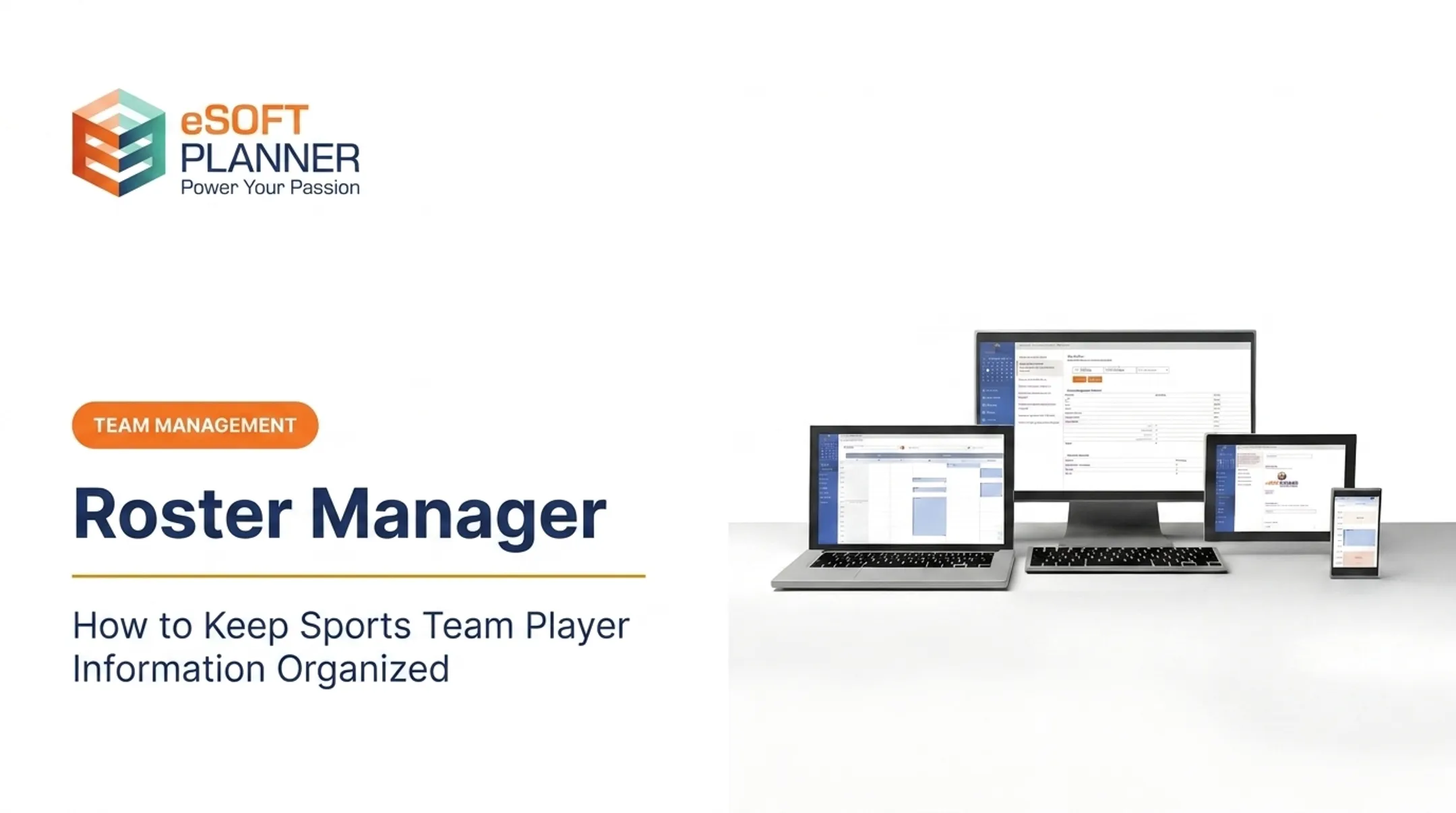
eSoft Planner sits in that second group. It connects player records to field bookings, lesson schedules, and recurring payments for sports academies, swim clubs, cheer gyms, and similar facilities—so staff manage one live roster instead of a standalone contact list.

Core Features to Look For in a Team List App
Not every "roster app" does the same job. Here's what actually matters for a facility juggling more than one team.
Centralized Player Profiles
A useful player record keeps everything in one place instead of scattered across folders:
- Contact info and emergency contacts
- Medical releases and signed waivers
- Payment history
Roster and Group Management
You need to assign players to teams, classes, or sessions without extra steps. Moving them between groups should stay simple as skill levels change or seasons roll over.
Real-Time Access and Permissions
Coaches, front-office staff, and parents shouldn't be looking at different versions of the truth. eSoft Planner's role-based permissions, for example, let instructors see schedules without exposing the full client database, while directors retain access to financial and registration details.
Scheduling and Billing Integration
Roster changes should connect to attendance tracking and invoicing rather than living in a separate silo. In eSoft Planner, the team-management module tracks players, schedules, budgets, and payments together, while the camps and clinics module handles enrollment and billing for group instruction.

Quick checklist for evaluating any app:
- Does it store waivers and medical releases alongside contact info?
- Can staff permissions be limited by role?
- Does a roster change reflect in the schedule automatically?
- Can it handle more than one team without extra workarounds?
How to Organize Rosters and Player Information: Step-by-Step
Step 1: Set Up Standardized Player Profile Fields
Start by defining required fields for every player record:
- Full name and date of birth
- Primary contact info and emergency contacts
- Medical notes or allergy flags
- Membership or program type
- Waiver and registration status
Make these fields required, not optional. Half-completed profiles are how facilities end up scrambling for an emergency contact mid-practice.
Step 2: Group Players Into Teams, Classes, or Programs
Structure groups by the rules your programs actually run on:
- Age bands for youth teams and clinics
- Skill tiers for progressive instruction
- Session type (team practice, lesson, camp, or open gym)
- Capacity caps so groups stay coachable
eSoft Planner lets administrators apply age restrictions, classify players by skill tier, and cap group lesson sizes. One volleyball program used skill-based clinics limited to three or four players. A la carte setup means you define those rules to match your facility, not a fixed template.

Step 3: Sync Rosters With Scheduling and Attendance
Link roster data to class and session schedules so attendance tracks against the right group automatically. This is where centralized platforms pull ahead of standalone apps: one system for enrollment, check-in, and billing beats juggling three.
Step 4: Manage Payments and Registration Status Within the Roster
Tag players by payment status directly in their profile. eSoft Planner's team tools let administrators view all player balances in one consolidated report instead of cross-checking a separate accounting spreadsheet against the roster by hand.
Step 5: Set Permissions and Keep Data Current
Assign staff access by role, and put a roster review on the calendar each season start.
Limit who can export the full client database. That single control cuts the risk of sensitive player data leaving on a personal laptop.
Best Practices for Keeping Player Data Accurate and Secure
Protect roster accuracy and player privacy with a few consistent habits:
- Require fresh waivers and emergency contacts at each registration cycle. eSoft Planner supports digital waiver collection with electronic signatures, so parents can sign per camp or program instead of relying on outdated forms.
- Audit rosters periodically. Remove inactive players and merge duplicate entries before they cause confusion mid-season. Most systems leave this manual, so put it on your calendar.
- Restrict access to sensitive data. Medical notes and minor contact details need tighter controls than a general schedule view. Use role-based permissions so coaches see schedules, membership managers see registration details, and directors see everything.

If your facility serves under-13 participants, COPPA may apply to apps that collect children's personal information. It requires parental consent and reasonable data protection measures (FTC COPPA guidance). Collect only what you need, and delete it when it's no longer relevant.
Common Mistakes Facilities Make When Managing Rosters
- Multiple disconnected spreadsheets across staff members: everyone edits their own copy, and nobody's sure which version is current
- Roster status disconnected from billing: overdue accounts go unnoticed until someone manually cross-checks payment records against the team list
- Stale emergency contact or medical information: outdated details create real safety risk during active sessions, especially for facilities serving kids
Each of these traces back to the same root cause: too many separate tools that staff have to reconcile by hand.
Frequently Asked Questions
Is the team list app free?
Pricing varies. Some basic single-team roster apps are free, while facility platforms like eSoft Planner use modular, a la carte pricing starting at $39/month, so you only pay for the modules you use.
How do I create a team list?
Start by defining player profile fields, group players into a team or program, then enter or import their data into your chosen roster app. Standardize the fields first so you're not fixing incomplete records later.
What is the best team list app?
For one team, a basic roster app is usually enough. Multi-program facilities get more value from a configurable platform that ties rosters to scheduling and payments.
How do I keep roster information updated throughout a season?
Set a recurring review schedule, with the start of season as a baseline, and require parents or players to confirm their details at each registration renewal.
Can a team list app handle multiple teams or programs at once?
Platforms built for facilities, rather than single-team apps, support grouping players across multiple programs, locations, and schedules under one account.
What information should be included in a player's profile?
At minimum: contact details, emergency contacts, medical notes, payment status, and program or team assignment. Waiver status is worth adding too.