
Many facility owners assume launching one means slapping a "Book Now" button on the website. It doesn't work that way. Results depend on accurate schedules, clear resource rules, tested customer workflows, reliable payments, and staff who actually trust the system enough to use it.
Experian Health's 2025 survey found that 80% of people want to schedule appointments anytime, from any device. Sports facility customers expect the same convenience.
This guide walks through the launch process, the setup work that happens before you ever show a customer the booking screen, the operational parameters that make or break accuracy, common failure points, troubleshooting steps, and alternatives if full self-service isn't the right fit yet.
Key Takeaways
- A booking portal must connect live availability to courts, fields, lanes, instructors, equipment, and membership rules
- Clean scheduling data and documented policies come before building the customer-facing experience
- Test payments, waivers, cancellations, and staff overrides before inviting every customer
- Track adoption, failed bookings, and support requests after launch to guide ongoing fixes
How to Launch a Client Self-Service Booking Portal for a Sports Facility
Launching in the right order prevents the two most common outcomes: a portal nobody trusts, or one that creates more admin work than it saves.
Step 1: Define the Booking Scope and Customer Journeys
Start by listing every bookable service and resource:
- Open play, private lessons, and training sessions
- Court or field rentals
- Swim lanes, camps, and clinics
- Memberships and package redemptions
Then map each customer journey separately. A one-time court rental doesn't work the same way as a recurring swim lane booking or a class registration with a waitlist. Rescheduling and cancellation each need their own path too.
Decide which bookings can go fully self-service and which need staff involvement first, such as:
- New customers without a completed waiver
- Bookings requiring instructor assignment or skill verification
- Package or membership eligibility checks
Before building anything, establish a baseline. How much staff time currently goes into phone bookings? How often do double-bookings happen? What's your no-show rate? You'll need these numbers later to prove the portal is working.
Step 2: Clean and Configure the Facility's Scheduling Data
A portal built on messy data just digitizes the mess. Audit your current calendar, spreadsheets, membership lists, and pricing before importing anything.
For each resource, configure:
- Operating hours, blackout dates, and maintenance periods
- Setup and cleanup buffers between bookings
- Capacity limits and standard booking duration
- Peak versus off-peak pricing and member-only access windows
Define eligibility rules too: age restrictions, skill requirements, package credit usage, and recurring reservation patterns. Remove duplicate customer records and outdated resource names now, not after launch.
Also assign ownership. Someone on staff needs clear authority to change prices, policies, and availability, or you'll end up with conflicting schedule edits within the first month.
Step 3: Build the Customer-Facing Booking Workflow
Design the shortest realistic path from selection to confirmed booking: choose the activity, pick a date and time, enter required details, accept any waiver, pay or apply credits, get confirmation. Every extra screen is a chance for someone to abandon the booking.

The workflow needs to:
- Show real-time availability so customers can't select a slot that's already taken
- Let account holders view past and upcoming bookings
- Allow rescheduling and cancellation within your policy
- Support family or group profiles where relevant
This is where a generic calendar tool usually breaks down. Sports facilities have rules that calendar apps weren't built to handle: instructor-specific availability, equipment pairing, and membership-tiered access.
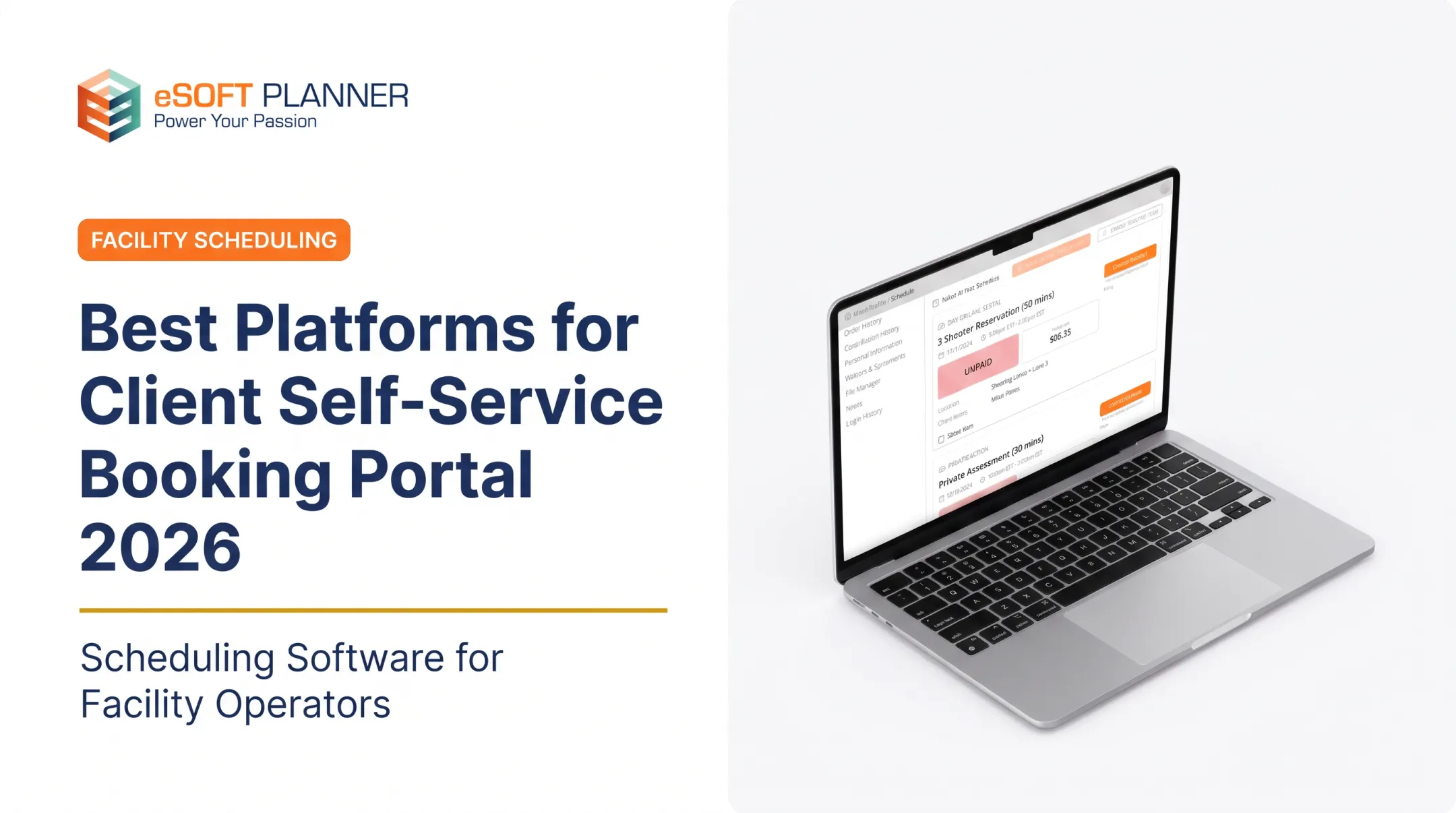
eSoft Planner was built specifically for scheduled and instructor-based businesses. Its modular tools cover rentals, lessons, camps, and memberships, and they connect to one shared availability engine instead of operating as separate booking silos.
Step 4: Connect Payments, Policies, Notifications, and Staff Workflows
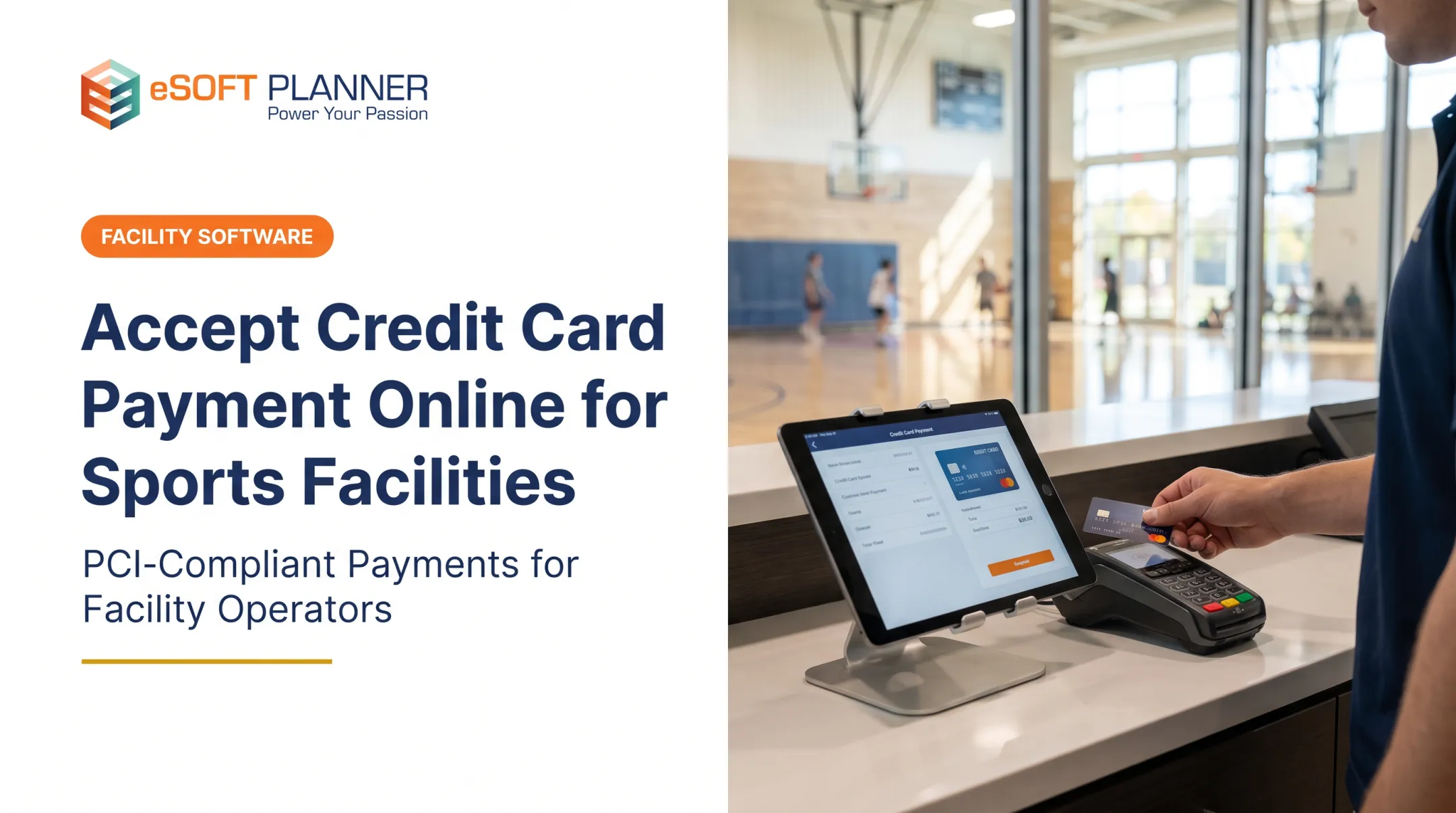
Payment rules need to match how your facility actually operates: deposits versus full payment, package credits, recurring membership billing, and what happens when a card is declined.
Waivers deserve careful placement. Require them at the right point in the flow, but don't force returning customers to re-sign something they already completed. That's unnecessary friction that drives people back to the phone.
Set up automated messages for:
- Booking confirmations and reminders
- Waitlist openings
- Cancellation notices
- Internal staff alerts for exceptions
Reminders matter more than most owners assume. A 2018 clinical trial across 25 primary-care clinics found missed appointments dropped to 4.4% with reminders sent at both three days and one day out, compared to 5.8% with a single three-day reminder.
That's a healthcare setting, not a sports facility. Still, the same mechanism (reducing forgetfulness through timed nudges) transfers directly to court and class bookings.
Finally, define your staff escalation path. Weather closures, injuries, disputed charges, and instructor substitutions still need a human decision-maker.
Step 5: Test, Pilot, Launch, and Optimize
Test on both mobile and desktop using real scenarios: two customers trying to book the same slot simultaneously, a capacity limit being hit, a failed payment, a membership-only resource being accessed by a non-member.
Before a full rollout:
- Run staff test bookings to catch unclear labels or confusing steps
- Pilot with a small customer group or a single service category first
- Fix issues identified during the pilot before expanding
- Promote the portal through the website, email, signage, and front-desk conversations once it's stable
After launch, monitor completion rate, failed transactions, cancellations, no-shows, and support tickets tied to booking confusion. eSoft Planner assigns every new client a dedicated customer success manager for implementation guidance and staff training, which matters most in this phase, when workflow kinks are still being worked out.
When Should You Launch One, and What Do You Need First?
A self-service portal fits well when:
- Customers repeatedly request the same handful of services
- Staff spend significant hours each week entering bookings manually
- Availability changes often enough that phone-based booking causes errors
- Customers need to book outside front-desk hours
A full rollout is premature if your pricing is still unstable, your schedule has unresolved duplicate records, your cancellation policy isn't finalized, or your services require extensive staff assessment before a customer can book.
Equipment and System Requirements
Evaluate the platform for:
- Real-time resource scheduling and customer accounts
- Mobile usability and integrated payments
- Waiver collection and automated notifications
- Recurring bookings, waitlists, and reporting
- Permission controls and website connectivity
Inputs, Materials, or Conditions
Before configuration starts, gather a complete inventory: resources, schedules, staff availability, prices, memberships, packages, policies, customer records, waiver language, and communication templates.
Skill, Safety, or Compliance Readiness
Assign clear staff ownership over schedule and policy changes, and define access permissions for who can view or edit customer payment data.
Government-operated facilities should note that DOJ's Title II rule requires scheduling and payment tools to meet WCAG 2.1 Level AA accessibility standards, with compliance deadlines in 2027 or 2028 depending on population size. Private facilities should still build toward accessible forms and clear error messages.

Have a qualified legal or compliance professional review your data retention and privacy practices before launch.
Key Parameters, Common Mistakes, and Troubleshooting
Booking accuracy depends on controlling operational variables, not just turning the portal on.
Resource, Policy, and Payment Rules
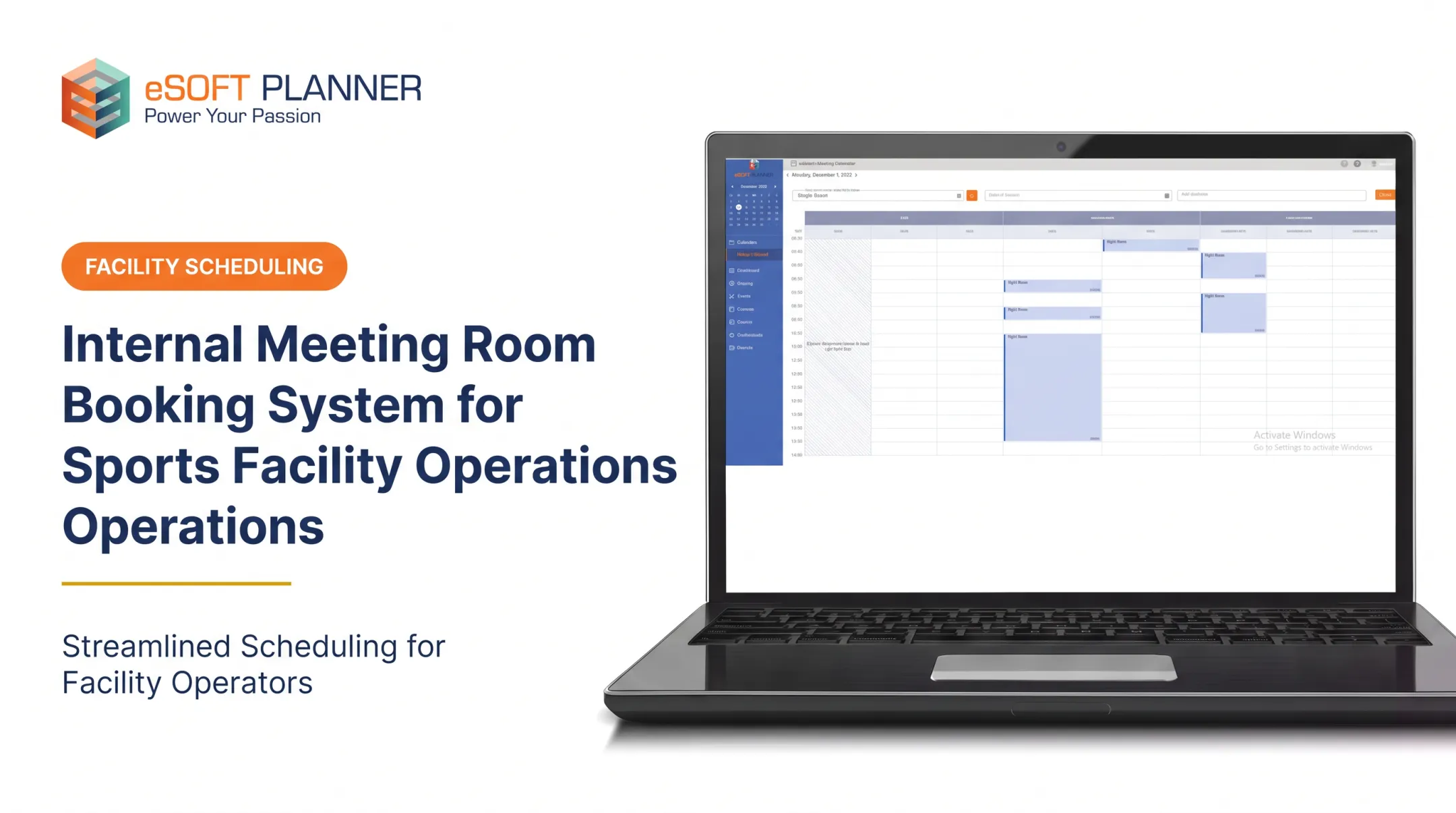
Resource definitions determine whether the portal reflects reality. A tennis court, for example, needs capacity rules, a 15-minute cleanup buffer, blackout dates for resurfacing, and simultaneous-use limits if it's shared with pickleball lines. Get any one of these wrong and customers book slots that don't actually exist.
Policy variables matter just as much:
- Cancellation windows and deposit requirements
- Membership access tiers and waiver status
- Age limits and package credit balances
- Payment authorization before confirming a slot
Test both valid and rejected scenarios deliberately, not just the happy path.
User Experience and Mobile Completion
Focus on these UX essentials:
- Use plain-language service names, not internal codes
- Keep form fields minimal and show availability clearly
- Write error messages that tell customers what to fix
- Include an obvious way to reach staff when self-service hits a wall
Common Mistakes and Quick Troubleshooting
Avoid these launch mistakes:
- Going live with an inaccurate or stale calendar
- Recreating an unstructured spreadsheet inside the new system
- Exposing every service to every customer regardless of eligibility
- Burying cancellation terms where customers won't see them
- Skipping staff training before launch
When issues appear, troubleshoot systematically:
- Duplicate bookings → check resource mapping, sync timing, and permission settings
- Failed payments → review gateway settings, billing data, and retry rules
- Low adoption → check discoverability, mobile performance, and whether the portal actually covers what customers want to book
Measurement and Continuous Improvement
Adoption takes time. A 2025 MGMA poll found that 71% of responding medical practices still see fewer than a quarter of patients self-scheduling digitally. Sports facilities should not expect instant full adoption either.
Review abandoned bookings, support questions, and manual overrides regularly, then adjust the workflow based on what you find.
Alternatives to a Client Self-Service Booking Portal
Full self-service isn't always the right starting point. The best approach depends on your facility's size, booking complexity, and readiness to keep availability accurate.
Staff-managed booking by phone, email, or front desk still makes sense for highly customized bookings, complex eligibility assessments, or low booking volume. The trade-off is limited availability and administrative workload that doesn't scale.
Website inquiry forms or request-to-book workflows work as a transitional step when bookings need approval first. They don't offer real-time confirmation, but they're a reasonable middle ground while you clean up data.
A hybrid model often works best in practice. Let routine reservations, class registrations, and cancellations happen online, while routing private events, injury-related changes, and instructor matching to staff.

eSoft Planner's modular setup covers rentals, lessons, camps, and memberships as separate components. You can mix self-service and staff-handled workflows without forcing every service online on day one.
Conclusion
Launching a client self-service booking portal works best when you clean your data, define resource and policy rules, test the full customer journey, and train staff before going live. Skip any of those steps and you'll trade one set of problems for another.
The right platform should cut double bookings and repetitive admin work while keeping staff in control of exceptions. eSoft Planner's modular, configurable system, backed by a dedicated customer success manager, is built for facilities that need real-time booking without losing operational control. If your facility is ready to evaluate one, that's where to start looking.
Frequently Asked Questions
How does a client portal work?
Customers sign in, view real-time availability, select a service or resource, complete required information and payment, then receive a confirmation. Staff continue managing schedules and handling exceptions through the administrative side of the system.
How to schedule an appointment with a client?
Create an appointment type, assign an instructor or resource, and define available times and booking rules. Send the client a booking link, then confirm once payment, waiver, or eligibility requirements are met.
What does "self-service portal" mean?
A self-service portal is a customer-facing system that lets clients complete routine actions on their own, including booking, payment, cancellation, and rescheduling, without needing staff for every transaction.